Guide ·
WoW Forever Camera Controls: Look Around, Zoom, First Person
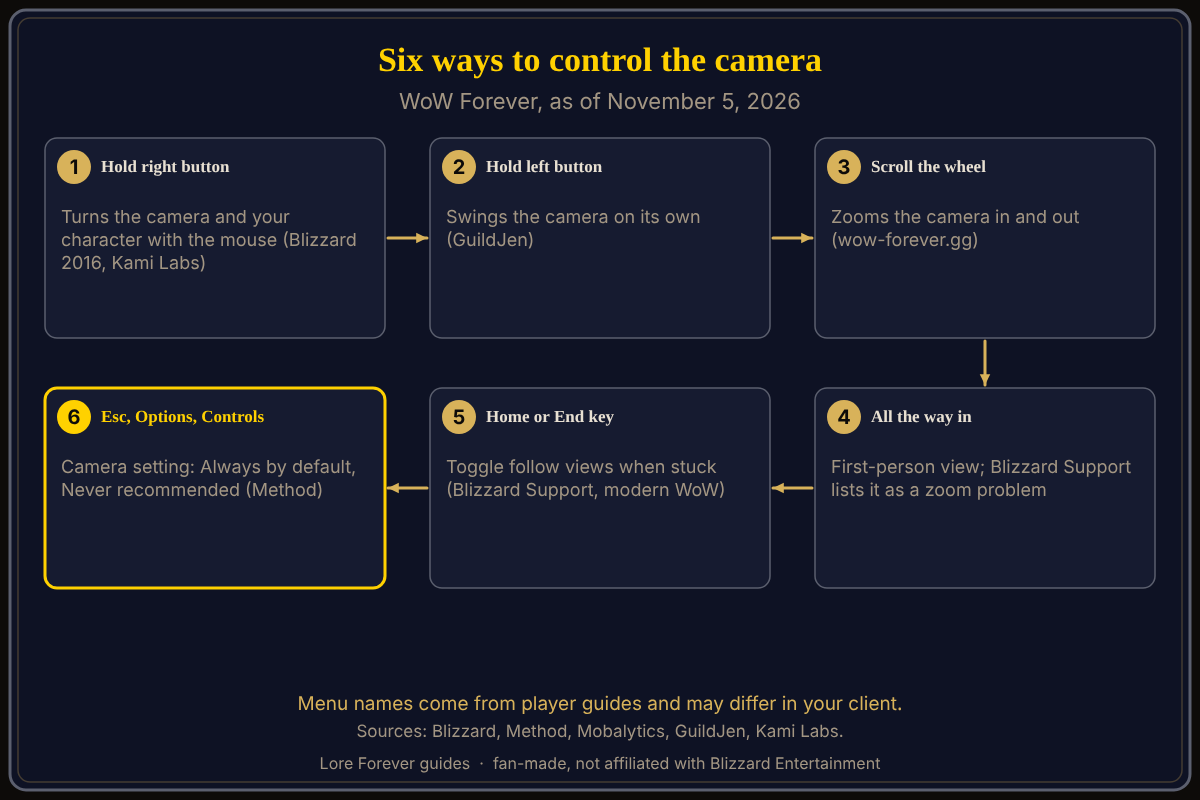
In World of Warcraft: Forever (WoW Forever) you control the camera with the mouse: hold the right mouse button to turn the camera and your character together, hold the left button to swing the camera on its own, and use the scroll wheel to zoom. Blizzard's 2016 new-player article (written for modern WoW) and Kami Labs' Forever guide describe the right button, and GuildJen's settings guide the left, as of November 5, 2026.
Quick answer: Right button held steers; left button held looks around; wheel zooms. If you are stuck zoomed all the way in, Blizzard Support's camera article says to press Home or End or open the camera key bindings. If the camera keeps swinging behind you, set the camera option in Options > Controls to Never.
Related: movement and mouse settings.
Key facts
- Right button held: controls where the camera points; with it held, W or the left button moves you forward (Blizzard, modern WoW article, 2016)
- Left button held: moves the camera independently (GuildJen, November 3)
- Zoom: scroll wheel, per the Forever guides below; Kami Labs binds zoom to the numpad plus and minus keys instead
- Stuck view: Home toggles direct follow view, End a downward follow view (Blizzard Support, modern WoW)
How do I control the camera in WoW Forever?
Blizzard's 2016 new-player article, written for modern WoW, says to hold the right mouse button to control where the camera points. With it held, moving the mouse turns your character, and W or the left button moves you forward. I found no Forever-specific replacement, so treat this as the starting point.
GuildJen's guide (November 3, 2026) adds that the left button moves the camera independently of your character, and holding the right button lines the camera up with your character again.
How do I zoom in and out?
Scroll the mouse wheel. wow-forever.gg tells readers to scroll the wheel out, and Kami Labs says its author moved zoom to the numpad plus and minus keys to free the wheel for spells, which implies the wheel zooms by default. For more distance, see max camera distance and zoom.
How do I get out of first-person view in WoW?
First-person view is what you see when the camera is zoomed all the way in. Blizzard Support's article "Cannot Zoom World of Warcraft Camera Out or In" lists "I'm stuck in first-person view" under the problem of being zoomed all of the way in. Its fix: press Home to toggle direct follow view or End for a downward follow view, or use Options > Key Bindings > Camera. The article is filed under modern WoW (its breadcrumb also lists Forever common issues), so treat the keys as a first thing to try, alongside scrolling the wheel back out.
Why does my camera keep swinging behind me?
Method's UI guide (September 30, 2026) says the Camera setting in Options > Controls defaults to Always and should be switched to Never. Mobalytics (November 3) says the default re-centres the camera behind you while moving. Guides name the option differently, so use the Options search box and type "camera". More in camera settings explained.
What is not confirmed yet
- Option names: Method says Camera, GuildJen Camera Following Style, Kami Labs "Adjust camera". The exact menu name may differ; check Esc > Options.
- Home and End: Blizzard's article is for modern WoW; I did not find them confirmed in the Forever client.
- Wheel default: inferred from two guides, not stated by Blizzard.
- Keyboard zoom: only Kami Labs mentions numpad plus and minus; no source lists other zoom keys.
Can the Lore Forever add-on and Willo help with this?
When a menu is confusing, ask Willo out loud, for example "where do I change the camera distance". She can be wrong and is not official, so the in-game menu is the source of truth; she does not change settings for you. Willo is free to start (50 answers a day) and is a separate companion app for Windows 10 or 11; her page and FAQ also list an Apple Silicon Mac version (macOS 12 or later), though the CurseForge page still describes her as a Windows app. The free Lore Forever add-on adds quest stories. Both are fan-made and not affiliated with Blizzard. See also the first hour guide and beginner's guide.
Frequently asked questions
How do I control the camera in WoW Forever?
Hold the right mouse button to turn the camera and your character, hold the left button to move the camera alone, and scroll to zoom.
How do I get out of first-person view?
Scroll out, or try Home or End, which Blizzard Support lists for modern WoW.
How do I stop the camera moving behind me?
Set the camera follow option in Options > Controls to Never, as Method, Mobalytics and GuildJen recommend.
Where are the camera settings?
Esc > Options > Controls, per Method and VGKami.
Can I zoom with the keyboard?
Kami Labs zooms with the numpad plus and minus keys, which frees the wheel for spells; no other source lists keyboard zoom.
Sources
Reviewed November 5, 2026. Lore Forever and Willo are fan-made and are not affiliated with Blizzard Entertainment.