Guide ·
Quest Objective Markers in WoW Forever: How to Turn Them On
WoW: Forever (WoW Forever) has in-game quest objective markers that work without an addon: typing /console showInGameNavigation 1 into the chat box makes a yellow diamond appear in the world for your selected quest, according to Wowhead.
Quick answer: Type /console showInGameNavigation 1 in chat, then select a quest. A yellow diamond marks the objective, or the turn-in, directly in the world, which helps most when the target is above or below you. As of November 21, 2026 this is reported by one outlet, Wowhead.
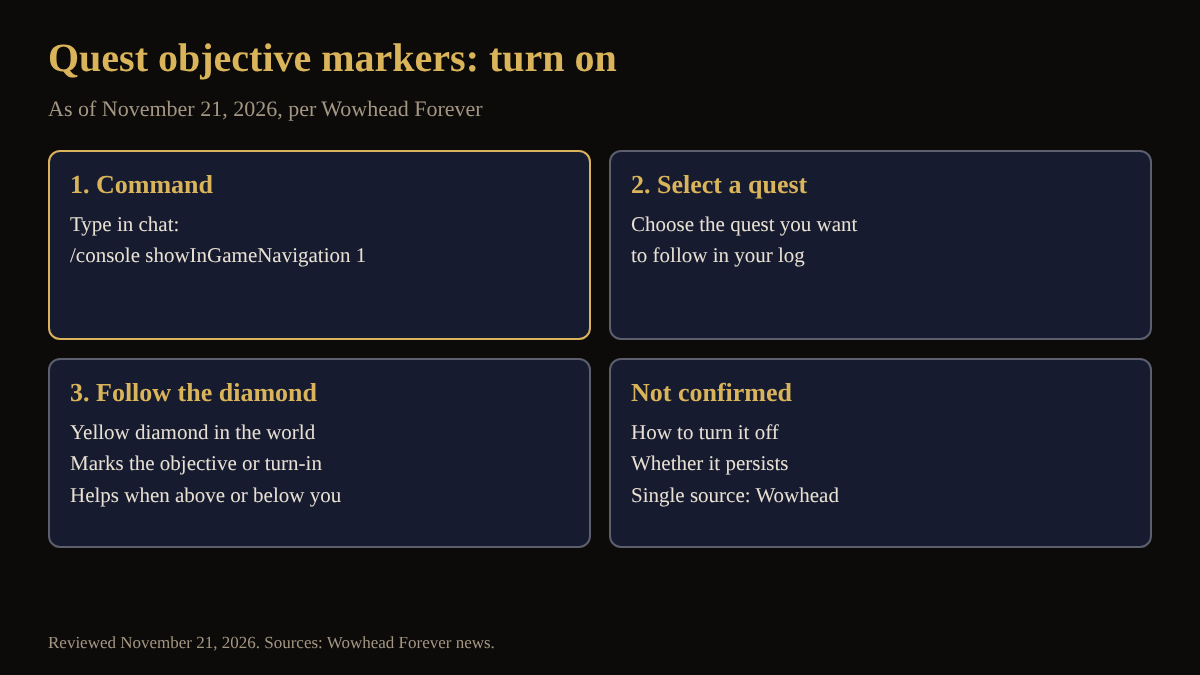
Key facts
- Command: /console showInGameNavigation 1 (Wowhead).
- Result: a yellow diamond in the world for the quest you have selected.
- Works for quest objectives, turn-ins and quests with a specific place to go to (Wowhead).
- No addon is needed, and you do not need to open the map.
- Source: one Wowhead Forever news post. No Blizzard page was opened for this feature.
How do you turn on quest objective markers in WoW Forever?
Open the chat box, type the command above and press Enter. Wowhead says the feature comes from the modern WoW client, which Forever is built on, and that it has to be enabled by the player. Then pick a quest in your quest log or tracker. Wowhead does not describe the exact menu steps for selecting a quest, so use whatever you normally use to track one.
What does the yellow diamond show?
Wowhead says it marks your chosen quest objective directly in the world, and that if the quest is ready to turn in, or has a specific location to go to, the navigation can show exactly where it is. Wowhead calls it especially useful when an objective is above or below you, because elevation is not shown well on a two-dimensional map.
How is this different from the map and other quest help?
Wowhead notes that Forever already shows quest objectives and areas on the map and marks mobs that are needed for a quest. The diamond adds a marker in the 3D world itself. For the map and minimap, see how to use the map and minimap; other options are in the interface settings guide. Wondering about extra tools? Do you need addons to play WoW Forever? answers that.
What is not confirmed yet
- How to turn the markers off: Wowhead's post gives only the command that turns them on.
- Whether the setting stays after you log out: not stated.
- Whether Blizzard documents it: no Blizzard page was opened.
- Behavior with multiple tracked quests: not stated.
How can the Lore Forever add-on and Willo help with quest objective markers?
Markers show where to go, while the free, fan-made Lore Forever add-on explains why. A Lore button on the quest log tells the story behind a quest, according to CurseForge. It covers every zone, city and dungeon up to level 30, plus Zephras Isle, the Hall of Thanes and the Ruins of Lordaeron, with place lore for the rest of the world; recorded narration covers selected entries and the rest is text. Higher-level quests are above that coverage, so check the /lore library. Willo is a separate companion app, free to start with 50 answers a day. Quest write-ups are in the quest guides index by zone.
Frequently asked questions
How do I turn on quest markers in WoW Forever?
Type /console showInGameNavigation 1 in the chat box, per Wowhead.
What does the yellow diamond mean in WoW Forever?
It marks the objective, or the turn-in, of the quest you have selected, directly in the world.
Do I need an addon for quest markers in WoW Forever?
No. Wowhead says the in-game markers work without additional addons.
Why use the markers instead of the map?
Wowhead says they help when an objective is above or below you, since a 2D map shows elevation poorly.
How do I turn quest markers off in WoW Forever?
Wowhead does not say. Its post gives only the enabling command.
Sources
Reviewed November 21, 2026. Lore Forever and Willo are fan-made and are not affiliated with Blizzard Entertainment.